

























Check a QR code before putting it on a page or printout
Verify the encoded text, white border, destination and final-size scan instead of trusting the preview.
A QR image can look correct and still send people to the wrong address or become difficult to scan after layout changes. Use a small preflight process: check the source text, generate a plain code, test the downloaded file and finally test the actual placement.
In this guide
Choose the final destination before generating
Use a public HTTPS page that you control and intend to maintain. Copy the address from the final page, then inspect its host, path and query parameters. A spelling error is faithfully encoded into the QR image. A code containing a normal URL does not automatically acquire a changeable redirect or a built-in expiry date.
https://example.com/guide?source=posterGenerate a plain baseline
- Open QR Code Generator and paste the intended address without surrounding spaces. Start without a logo so you can separate basic readability from decoration-related problems.
- Download the generated image. Decode that downloaded file with QR Code Decoder or a compatible reader, then compare the text with the original. A successful text match checks the payload; it does not yet prove that the final printed design scans well.
Preserve the clear border
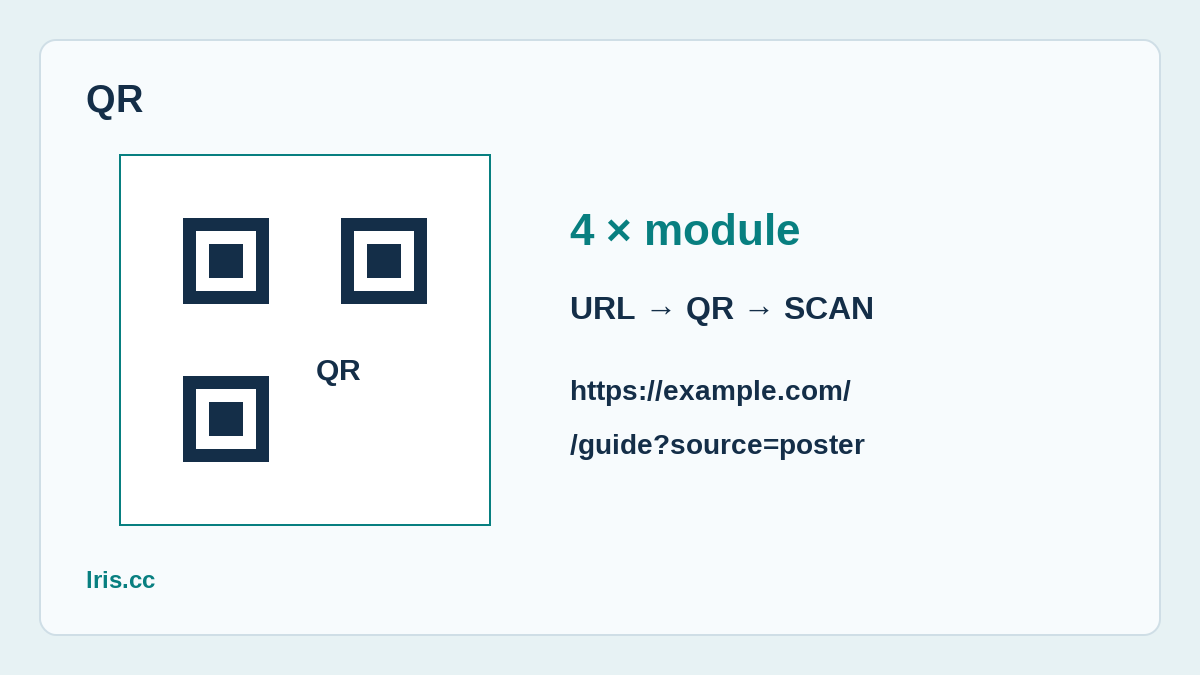
DENSO WAVE specifies a quiet zone four modules wide around a standard QR symbol. A module is one small square in the code, not one arbitrary image pixel. Do not crop the border away or place text, patterns or a coloured background into that clear area. Retest after any resizing or export performed by your page or print editor.
Test at the size and in the setting people will use
- For a web page, scan the actual displayed code from another device. For print, make a trial at the intended dimensions and test it under realistic lighting and distance. There is no single image width that guarantees reliable scanning for every payload and placement.
- If the code fails, first try a plain high-contrast version, a larger placement and an unobstructed border. Avoid repeated screenshotting, heavy compression and stretching. Reintroduce a logo only after the baseline passes, then test again.
Check the landing page as well as the scan
Use at least two available reader/device combinations when practical. Confirm that the address opens the right page on mobile, that redirects are expected and that the content does not require an unintended login. example.com in this guide illustrates the payload format; replace it with your tested destination before publishing.
Keep the original payload and final downloaded image together. If a future scan opens an unexpected page, compare the decoded URL first, then investigate changes to the destination or redirect service. The QR picture and the web page it points to are separate things.
