

























Resize, crop and convert a web image without stretching it
Work through an 800 × 450 example and verify the downloaded dimensions, transparency and format.
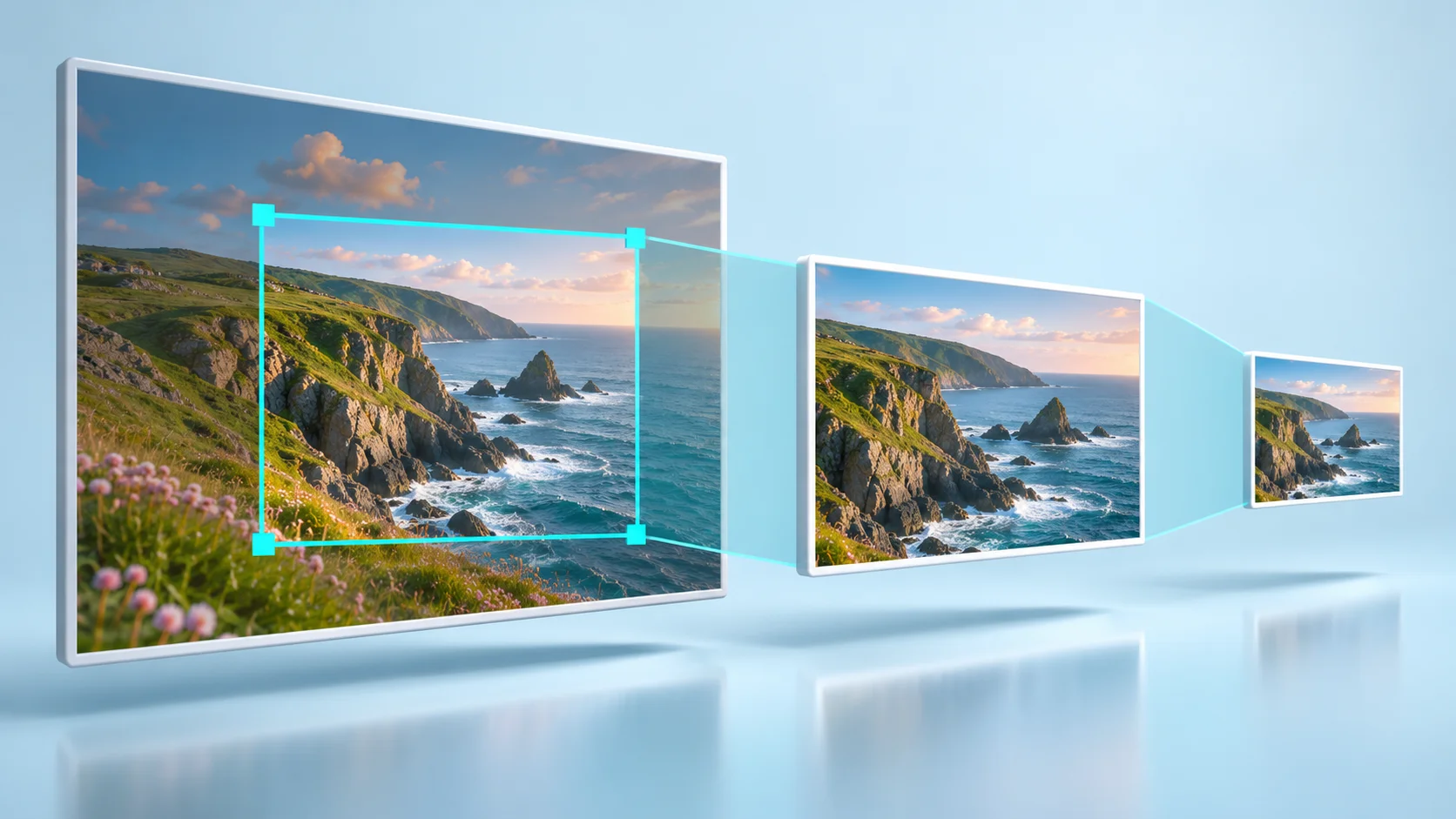
Resizing, cropping and format conversion solve different problems. This guide uses a fictional 800 × 450 image to prepare a smaller landscape image and a square thumbnail. Keep the original unchanged so each output starts from the best available source.
In this guide
Choose dimensions before choosing a file format
An 800 × 450 image has a 16:9 aspect ratio. A 400 × 225 output preserves that ratio and halves both dimensions. Forcing the same image into 400 × 400 changes the ratio and can stretch faces or objects. A smaller file in bytes is not necessarily smaller in pixels; check both properties separately.
800 / 450 = 16 / 9
400 / 225 = 16 / 9
800 × 450 → 400 × 225
800 × 450 → 450 × 450
Make the landscape version
- Open Image Resizer and select a copy of the original. Set the target width to 400 and keep the aspect ratio, or explicitly use 400 × 225 if the interface asks for both dimensions.
- Inspect text, faces and thin lines in the preview. Download the result, reopen it and confirm 400 × 225 in the file information. Do not rely solely on the preview box size.
Make a square thumbnail from the original
- Return to the 800 × 450 source and open Image Cropper. Choose a square crop that fits inside the image; 450 × 450 uses its full height.
- Move the crop around the subject. A centred crop removes 175 pixels from each side, but centring is not always the best composition. Keep faces, labels and important objects away from the edge.
Cropping removes content; resizing changes pixel dimensions. Do not first shrink to 400 × 225 and then enlarge a small crop to recover lost detail. If a square layout needs a wider scene, consider adding a background in a separate editor rather than distorting the subject.
Convert the format and inspect the actual output
WebP supports transparency, but that does not guarantee every conversion path preserves it. After PNG to WebP, inspect the corners on both a light and dark background. Reopen the downloaded file and confirm the format, dimensions and appearance. Renaming a .png extension to .webp does not convert the contents.
Decide whether the conversion is an improvement
- Compare file size at the same pixel dimensions. Keep the output only if its quality and compatibility suit the place where it will be published; WebP is not guaranteed to be smaller for every input.
- Look at small text, fine edges and transparent borders at normal size and zoomed in. If they show halos or blur, return to the source instead of repeatedly converting the previous output.
A sensible delivery set is an untouched original, a proportional landscape image and a separately composed square thumbnail. Use descriptive filenames such as landscape-400x225.webp and square-450x450.webp so the publishing team can choose the intended version.
